Integration
How to integrate the module
This is a quick introduction to get you oriented, not a detailed guide. For the full technical and legal requirements needed to integrate successfully, please refer to our official documentation
01 / WHERE THE MODULE RUNS
First question: does it run where you do?
Almost certainly yes — desktop, mobile, smart TV, and server are all covered. And once you’ve found your platform in the table below, the more useful fact is what comes next: the work is the same everywhere. Same six concepts, same call order, only the language bindings change.
| OS | Languages and runtimes |
|---|---|
| Windows | C/C++, .NET / C#, Node.js / Electron |
| macOS | Swift, C/C++, Node.js / Electron |
| iOS | Swift |
| tvOS | Swift |
| Linux | C/C++, Node.js / Electron |
C/C++ bindings work with anything that can call a C-style library interface — Rust, Go, Python C extensions, Node.js native add-ons, Java via JNI, and similar.
Other platforms and use cases are evaluated on request.
02 / SIX CONCEPTS, ONE ORDER
The whole system reduced to six concepts
Different platforms name them differently, but they all follow the same sequence. Learn the pattern once, and every integration becomes easier to understand. Five steps are execution. One step carries the actual thinking.
01
API key
Created in the partner dashboard. One key per application you’ll integrate.
02
Initialise
A single call. Passes the API key. Idempotent if called again with the same key.
Consent
Two paths: show the built-in consent screen, or capture consent in your own UI and call optIn. Both are first-class; neither is a workaround.
04
Start
05
Stop
06
Opt-out
Platform-specific code, function names, and sample apps are in the documentation. The conceptual model above describes every integration.
Available on
03 / THE CONSENT SCREEN
This is the screen your users see
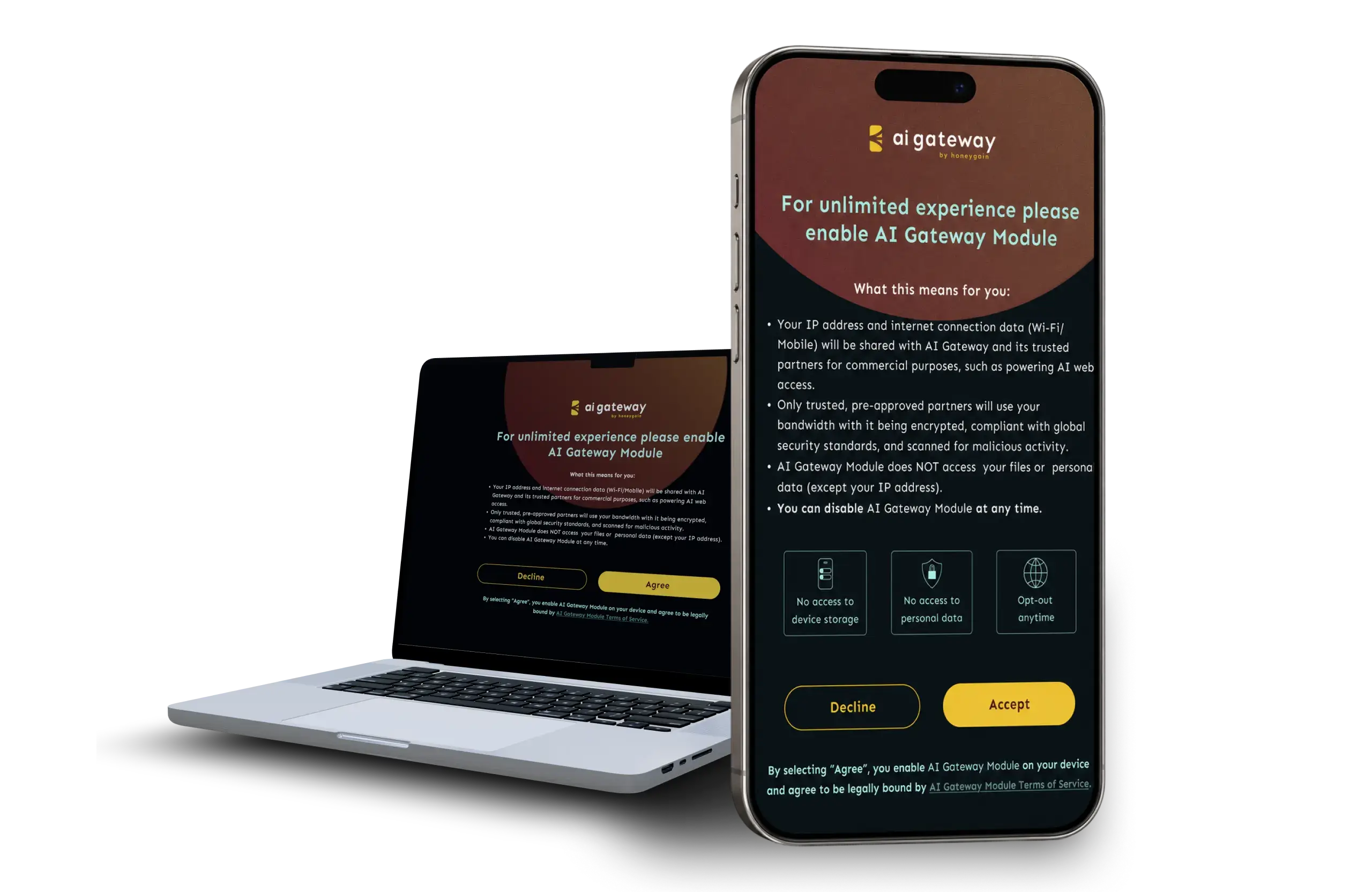
Everything else on this page is invisible plumbing. This is the part a person reads and agrees to — so it’s the part that’s governed most tightly. Nothing routes until a user has consented, and that rule isn’t a guideline you’re trusted to follow: it is enforced at the Module layer – not the marketing layer.
The default screen
The Module ships with a default consent screen that meets every requirement out of the box. For partners who want fast time-to-launch, the default is the shortest path. One Module call to display. Captures consent. Stores it. No additional UI work required.
Required elements
Every consent screen – default or custom – must include all of the following:
| Element | What it means |
|---|---|
| Value exchange | What the user gains for enabling the Module. |
| Data disclosure | The user's IP address and connection data will be used commercially, including for public web data collection. |
| Privacy assurance | The Module does not access files, personal data, cookies, or browsing history. |
| Opt-out statement | The user can disable the Module at any time from settings. |
| Accept semantics | "Agree" enables the Module and binds the user to the Honeygain AI Gateway Terms of Service. |
| Legal link | A working link (or scannable QR on TV platforms) to the Terms of Service. |